The Smart Previews Workflow: Send Your Catalog Safely (and Fast)
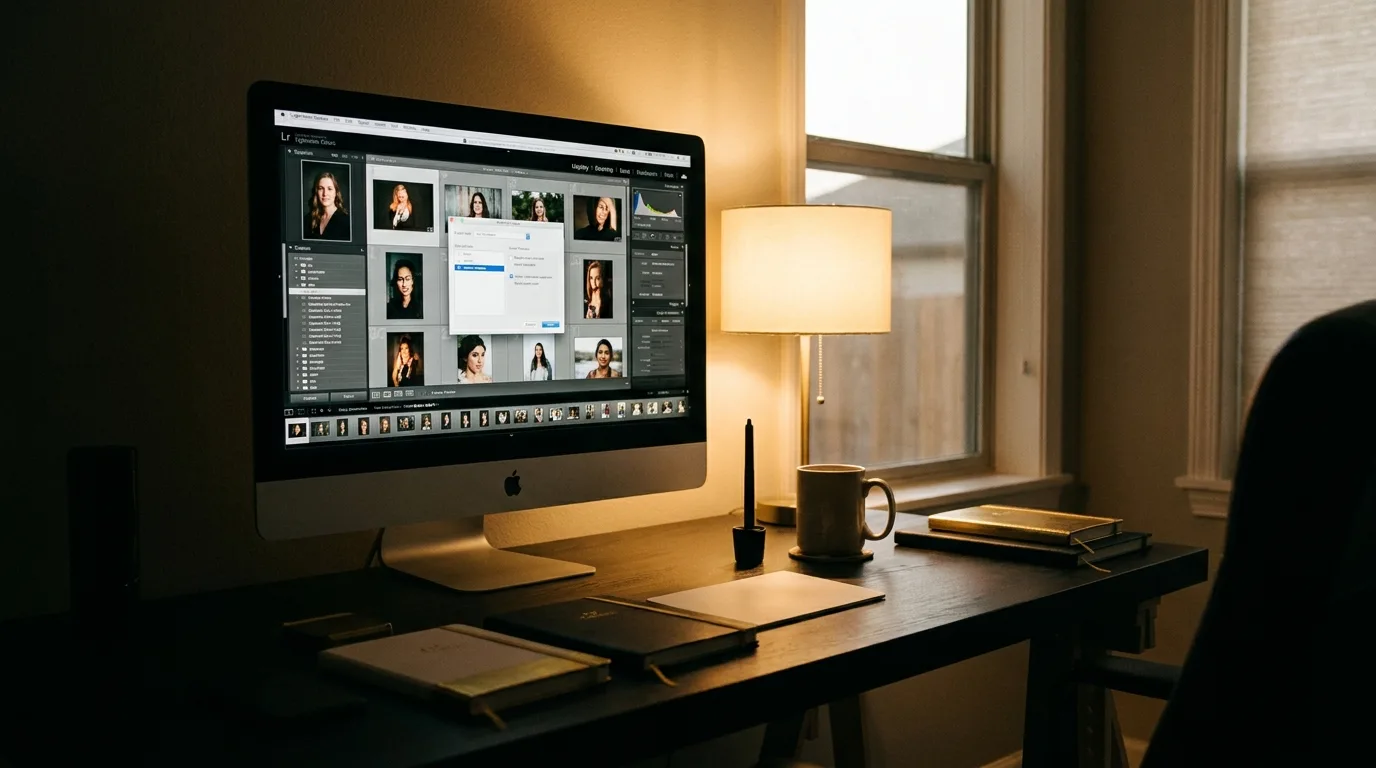
The biggest practical objection to outsourcing is «I am not uploading 80 gigabytes of RAW files» — and you should not have to. Lightroom Smart Previews let an editor work on your catalog at full editing fidelity while your originals never leave your drives. A wedding becomes a few gigabytes that upload over lunch.
What is a Smart Preview?
A Smart Preview is a lossy DNG that Lightroom generates alongside your original file. It is roughly 2,500 pixels on the long edge and carries the full tonal and colour data needed for editing — exposure, white balance, highlight and shadow recovery, colour grading all behave normally.
What it is not: a file you can export a print from. It exists to carry adjustments, not final pixels. When the settings come back and sync to your originals, the export happens at full resolution on your machine.
The size difference is the point. A 45 MB RAW becomes roughly a 2 MB Smart Preview. A wedding of 3,000 frames drops from around 130 GB to about 6 GB.
The workflow, step by step
- Import as usual and check «Build Smart Previews» in the import dialog. If you already imported, select all and use Library → Previews → Build Smart Previews.
- Cull first if you are only outsourcing the edit — no reason to send frames nobody will touch.
- Export as Catalog. File → Export as Catalog, with «Export negative files» unchecked and «Build/Include Smart Previews» checked. You get a catalog plus a Smart Previews package.
- Compress and upload the folder to your transfer service of choice.
- The editor works on that catalog. Lightroom shows «Smart Preview» under the histogram and every develop control behaves normally.
- They return the catalog with settings applied.
- You import it back: File → Import from Another Catalog, choosing to update metadata and develop settings. Lightroom applies everything to your originals.
- Export at full resolution from your own machine.
Why it is safe
- Your originals never move. They stay on your drives for the entire process.
- Nothing is destructive. Lightroom edits are instructions, not pixel changes. Anything can be reverted.
- The transferred files are not print-usable. At 2,500 pixels they cannot produce a saleable print or a full-resolution deliverable.
- You control access. Expiring links and password protection are standard on any serious transfer service.
- NDAs are normal. Ask for one, especially if you shoot public figures or work under confidentiality clauses.
Tips for a smooth handoff
- Verify before uploading. Open a few images in Develop and confirm «Smart Preview» appears under the histogram. If it says «Original + Smart Preview», you are still pointing at the originals and the editor will not be.
- Send your presets separately. Custom profiles do not always travel inside the catalog, and a missing profile makes images render wrong on the other end.
- Include a short brief: delivery count, anything unusual about the lighting, must-keep frames, deadline.
- Keep the catalog name meaningful. «Smith-Wedding-2026-05-12» beats «Export-1» when you are running several jobs.
- Do not edit your local catalog while it is out. Reimporting on top of your own changes causes conflicts that are tedious to untangle.
- Back up before reimporting. One copy of the catalog before you merge, always.
If you are not on Lightroom Classic
The principle holds even when the mechanism differs.
Capture One uses sessions and can share a catalog with proxies. Lightroom CC syncs through the cloud, which removes the transfer step entirely but requires shared account access. For video, the equivalent is proxy media with matching timecode — same idea, different file type.
What matters is that the editor works on lightweight files and the final export happens against your originals. Any workflow that preserves that is fine.
The one thing to test first
Before sending a full wedding, run the round trip on twenty images. Export the catalog, send it, get it back, reimport, export a final file.
Doing that once removes every doubt about the process — and it is far better to discover a missing profile on twenty frames than on three thousand.
Common problems and their causes
- Editor sees «file missing». «Export negative files» was left checked, or Smart Previews were never built. Rebuild and re-export.
- Colours look wrong on their end. A custom camera profile did not travel with the catalog. Send the profile files separately.
- Reimport creates duplicates. The catalog was imported as new images instead of matched to existing ones. Use «Import from Another Catalog» and check that Lightroom is matching by filename.
- Edits did not apply. During reimport, «Replace: Metadata and develop settings only» was not selected.
All four are configuration, not corruption. Nothing in this workflow can damage an original file — the worst case is repeating a step.
Frequently asked
- Will the quality suffer using Smart Previews?
- No. Edits are applied to your original RAWs when the catalog returns — final exports are full quality.
- What if I don't use Lightroom?
- We can also work with proxies or other transfer methods — just ask and we'll set up the best workflow for your software.
- How long does the transfer take?
- Since Smart Previews are small, even a full wedding usually uploads in minutes, not hours.